How to set up Facebook Page auto replies
By Asikaso AI · Published
On this page
A Facebook Page auto reply is a message your Page sends by itself when a customer messages you. It is free, it is built into Meta Business Suite, and it takes a few minutes to set up. Customers get a reply right away, even when you are busy or asleep.
This guide shows how to turn it on from a computer or a phone, and gives you English and Taglish messages you can copy. It also shows what an auto reply can't do, so you know what to expect.
Which auto reply do you need?
Facebook has three main kinds of automatic message. Most Pages use more than one.
- Instant reply
- A greeting sent when someone messages your Page for the first time, also known as a welcome message. On a computer, Facebook calls this Auto-reply. In the phone app it is called Instant reply. They are the same feature.
- Away message
- A message sent while your Page is marked as away, such as after closing time. It tells customers when to expect a reply.
- Frequently asked questions
- Questions you write in advance, each with a saved answer. Customers see them as suggestions when they start a chat and tap one to get the answer.
Facebook also has ready-made automations for your hours, location, and contact information. You set them up the same way, by saving the details once.
How to set up an instant reply
On a computer
- Open Meta Business Suite and go to Inbox.
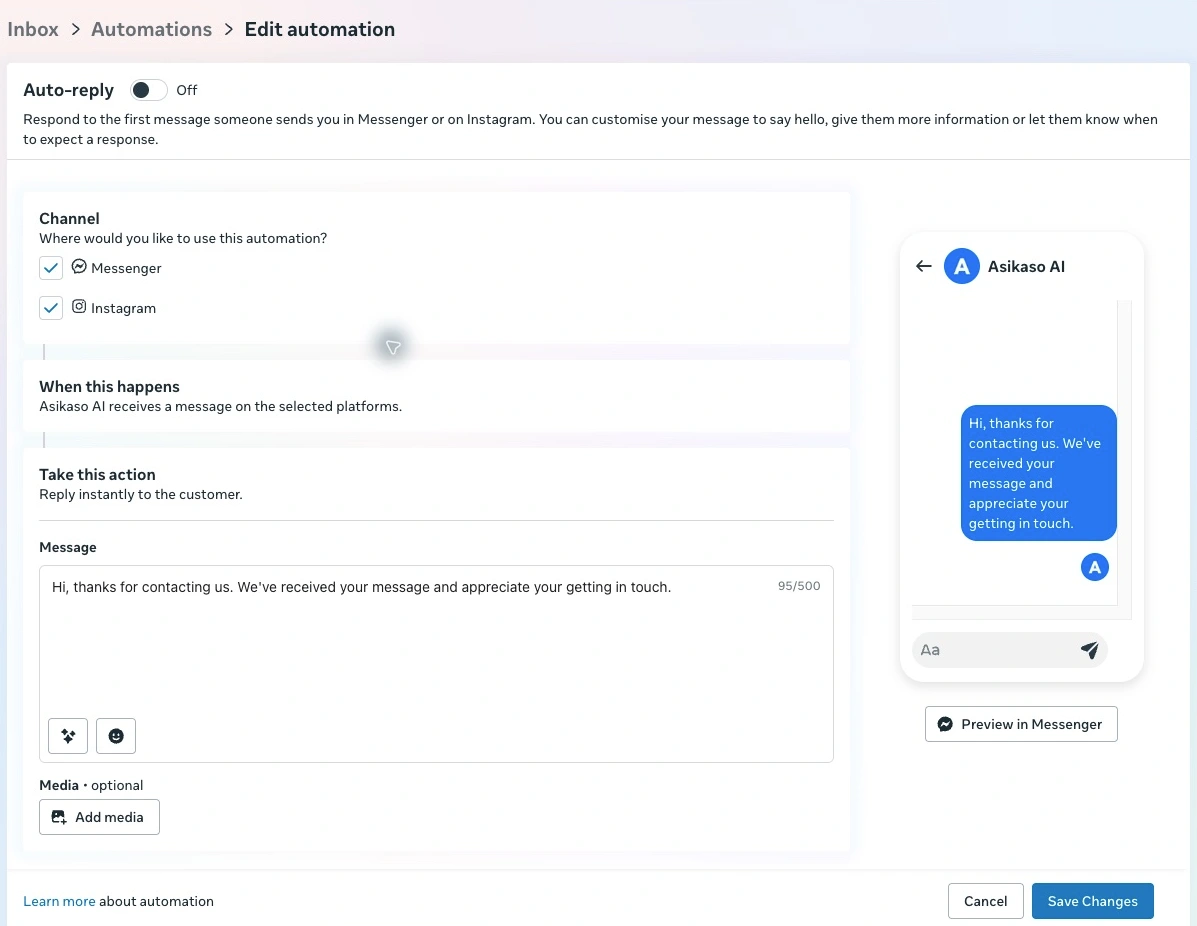
- Select the Automations button in the top right of the Inbox. The page that opens is labeled Inbox > Automations.
- Select Auto-reply. It is under Suggested for you, or under Your automations if it has been set up before.
- Under Channel, tick Messenger. Untick Instagram if you only want the reply on your Facebook Page.
- Under Message, write your greeting. You have 500 characters.
- Select Preview in Messenger to see how it looks.
- Turn on the switch beside Auto-reply, then select Save Changes.

On a phone
- Open the Meta Business Suite app and tap Inbox.
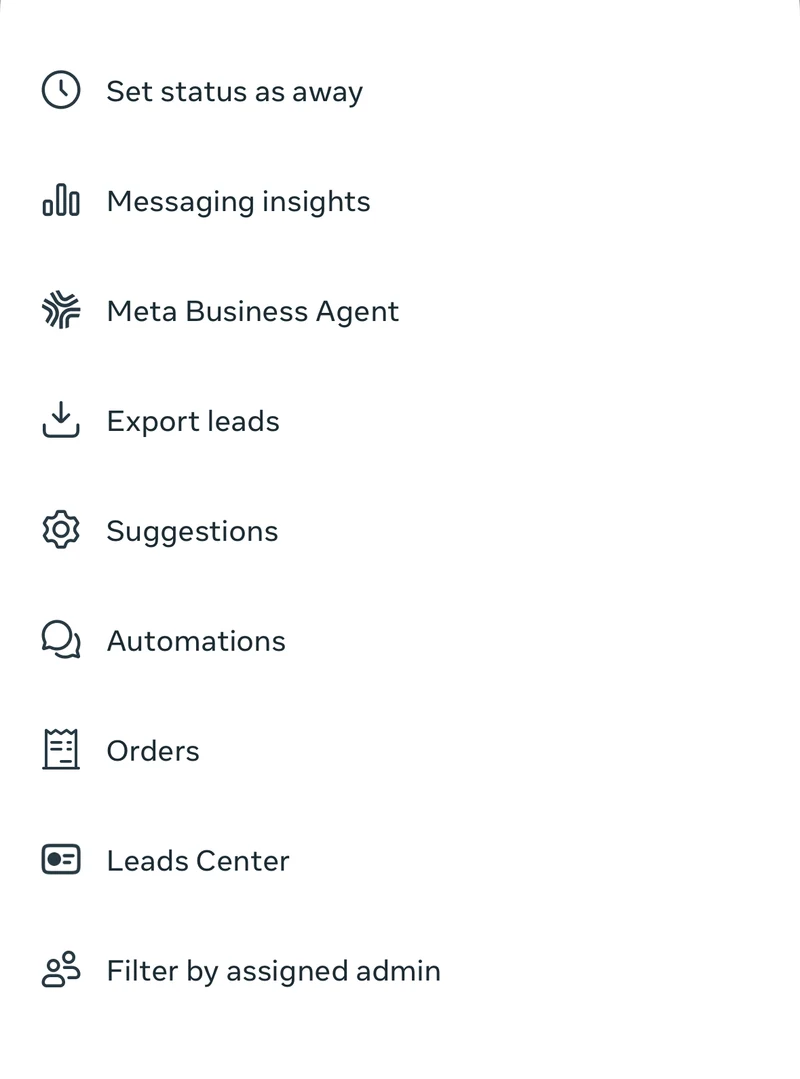
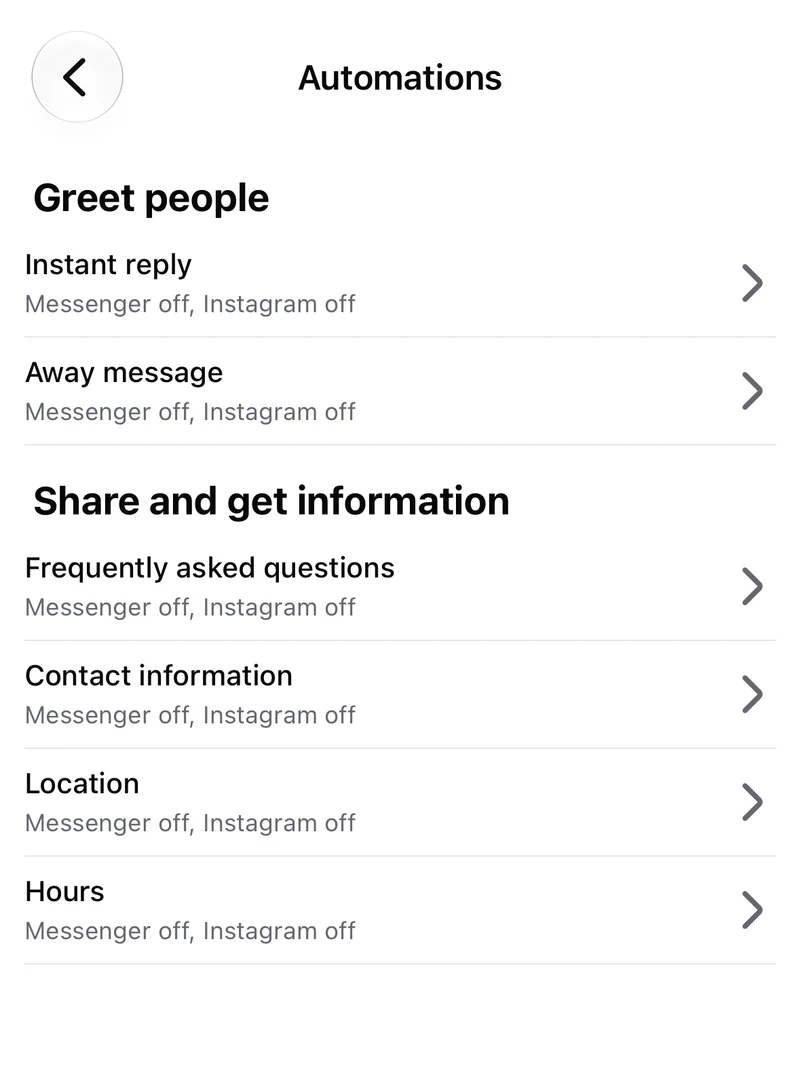
- Tap the three dots at the top right, then tap Automations.
- Tap Instant reply.
- Turn on Messenger, edit the message, and tap Save.
A good greeting does two things: it tells the customer you got their message, and it tells them what to send next. “Thanks for messaging!” alone leaves the customer waiting. “Which item are you interested in?” gets you the detail you need for your first real reply.
Facebook sends the instant reply for the first message someone sends your Page, not for every message after it.
How to set up an away message
An away message is sent while your Page is marked as away. You can set regular away hours, or switch to away by hand when you step out.
- Go to Inbox > Automations and open Away message, under Suggested for you or Your automations. In the phone app it is in the same Automations list as the instant reply.
- Under Channel, tick Messenger.
- Check the Timezone. For most Philippine businesses it should say Asia/Manila.
- Pick a day, then set the Start time and End time when nobody is available to reply. Use Add Another Time Range if you are away twice in one day, such as during lunch and after closing.
- Repeat for the other days of the week.
- Write your message, turn on the switch beside Away message, and select Save Changes.
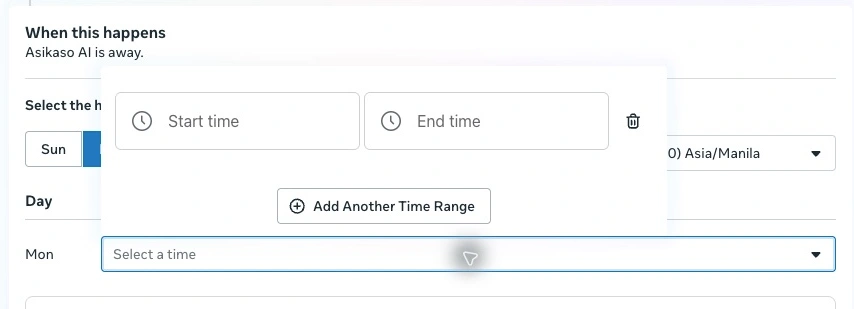
To go away without a schedule, mark your Page as away from the Inbox. In the phone app, tap the three dots in the Inbox and choose Set status as away.
Your away message should say when you will reply. A customer who knows you reopen at 9 AM is more likely to wait than one who hears nothing.
If your Page is away and the instant reply is also on, Facebook sends the away message instead of the instant reply. The customer does not get both.
How to add frequently asked questions
This is where you save answers to the questions you get every day, such as your prices or how to book.
- Go to Inbox > Automations and open Frequently asked questions, under Suggested for you or Your automations. In the phone app it is in the same Automations list.
- Under Channel, tick Messenger, then open the Messenger tab.
- Select Add question.
- Type the question the way a customer would ask it. You have 80 characters.
- Type the answer under Automated response. You have 500 characters.
- Add more questions, turn on the automation, and select Save Changes.
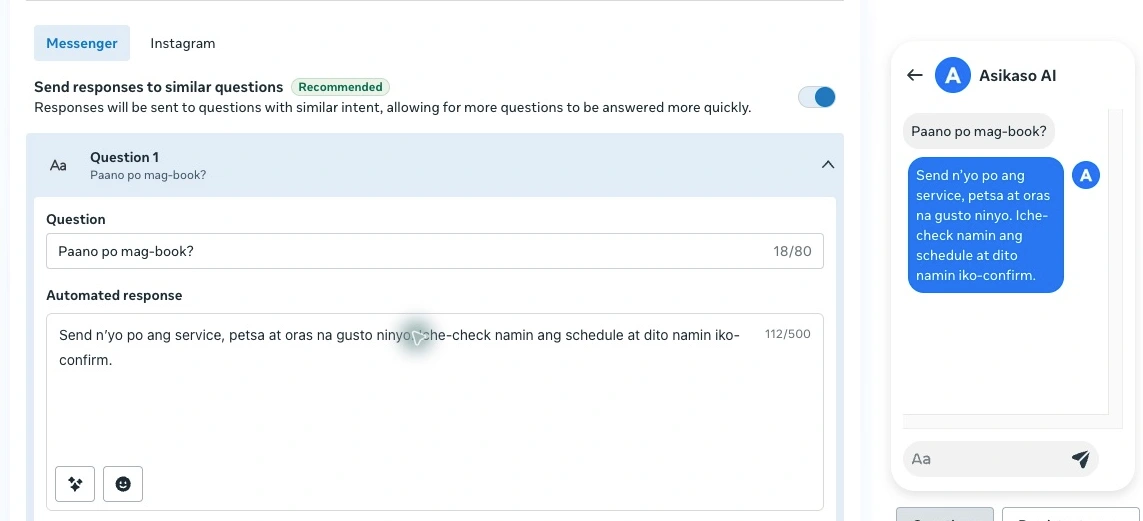
Two settings are worth knowing:
- Send responses to similar questions. When this is on, Facebook also sends your saved answer to questions it judges to have a similar meaning. It was on by default when we checked. Test it with the wording your own customers use, including Taglish, before you rely on it.
- Add this question to persistent menu. This keeps the question in the chat menu so customers can find it later. Facebook recommends 30 characters or fewer so the question shows in full.
Write each question about one specific thing. “Magkano po ang haircut?” can have one clear saved answer. “Magkano po?” cannot, because the answer depends on what the customer wants.
Auto reply message samples in English and Taglish
Replace the parts in brackets with your own details.
Instant reply (welcome message)
- English: Thanks for messaging [shop]! Which item are you interested in? You can send its name or a photo so we can check for you.
- Taglish: Hi po! Anong item po ang gusto ninyong i-check? Puwede pong ipadala ang pangalan o picture para matulungan namin kayo.
Away message
- English: Thanks for your message! Our team replies [days and hours]. Leave your question here and we'll get back to you when we reopen.
- Taglish: Salamat sa message! Ang oras ng reply namin ay [araw at oras]. Iwan lang po ang tanong ninyo rito. Babalikan namin kayo pagbalik ng team.
Price of one item
- English: [Item] is ₱[price] per [unit]. What city should we check delivery to?
- Taglish: ₱[price] po ang [item] per [unit]. Saang city po ang delivery para ma-check namin ang fee?
Delivery fee
- English: Delivery is ₱[fee] within [area] and ₱[fee] for [other areas].
- Taglish: ₱[fee] po ang delivery sa [area] at ₱[fee] sa [ibang area].
How to book
- English: What service, date, and time would you like? Our team will check the schedule and confirm here.
- Taglish: Anong service, petsa at oras po ang gusto ninyo? Iche-check po namin ang schedule at dito namin iko-confirm.
The first two go in the instant reply and away message. The last three are saved answers, so pair each with a question such as “Magkano po ang [item]?”, “Magkano po ang delivery?”, or “Paano po mag-book?”
What auto replies can't do
Auto replies send what you saved. They do not read the customer's message and work out an answer. That is fine for the first hello, but most customers have a second question.
In this example the customer asked about one item, one city, and one deadline at the same time. You could save an answer for your delivery fees, but not for every combination of item, place, and date a customer might ask about. Those questions wait until someone on your team replies.
For many small Pages that is enough. If you get a handful of messages a day and can answer within a few hours, the free auto replies will cover you.
It may be time for something more when:
- Customers message at night and have bought elsewhere by the time you reply.
- Your team answers the same questions about prices, stock, and delivery all day.
- You take bookings or orders in chat and details get lost in long threads.
This is the gap an AI chatbot fills. Asikaso AI reads each message and answers from your own prices, delivery rules, and policies, in English or Taglish. Here is the same conversation with it turned on.
It also covers the three signs above:
- Answers day and night. Customers get a real answer in English or Taglish, even after closing time.
- Takes order and booking requests. It asks for the details your team needs and saves each customer as a lead.
- Hands over to your team. When a customer asks for a person, or asks something it can't confirm, it alerts your team to take over the chat.
To see what setting one up involves, read how to use an AI chatbot for customer service on your Facebook Page.
Let AI answer your Messenger inquiries
Set up in minutes with your business information. Replies in English, Tagalog, and Taglish, with help from a local founder. Start with a 14-day free trial.
Compare plans and pricing →Still comparing tools? See our guide to the best Facebook Messenger chatbots for Philippine businesses.
Asikaso AI publishes this guide. The steps were checked in Meta Business Suite in November 2026. Meta changes its labels and screens from time to time, so yours may look slightly different.